Zoom Integration
Connecting Zoom
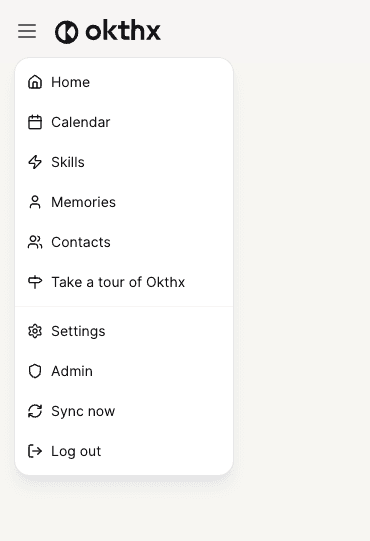
Tap the menu icon in the top-left corner and go to Settings
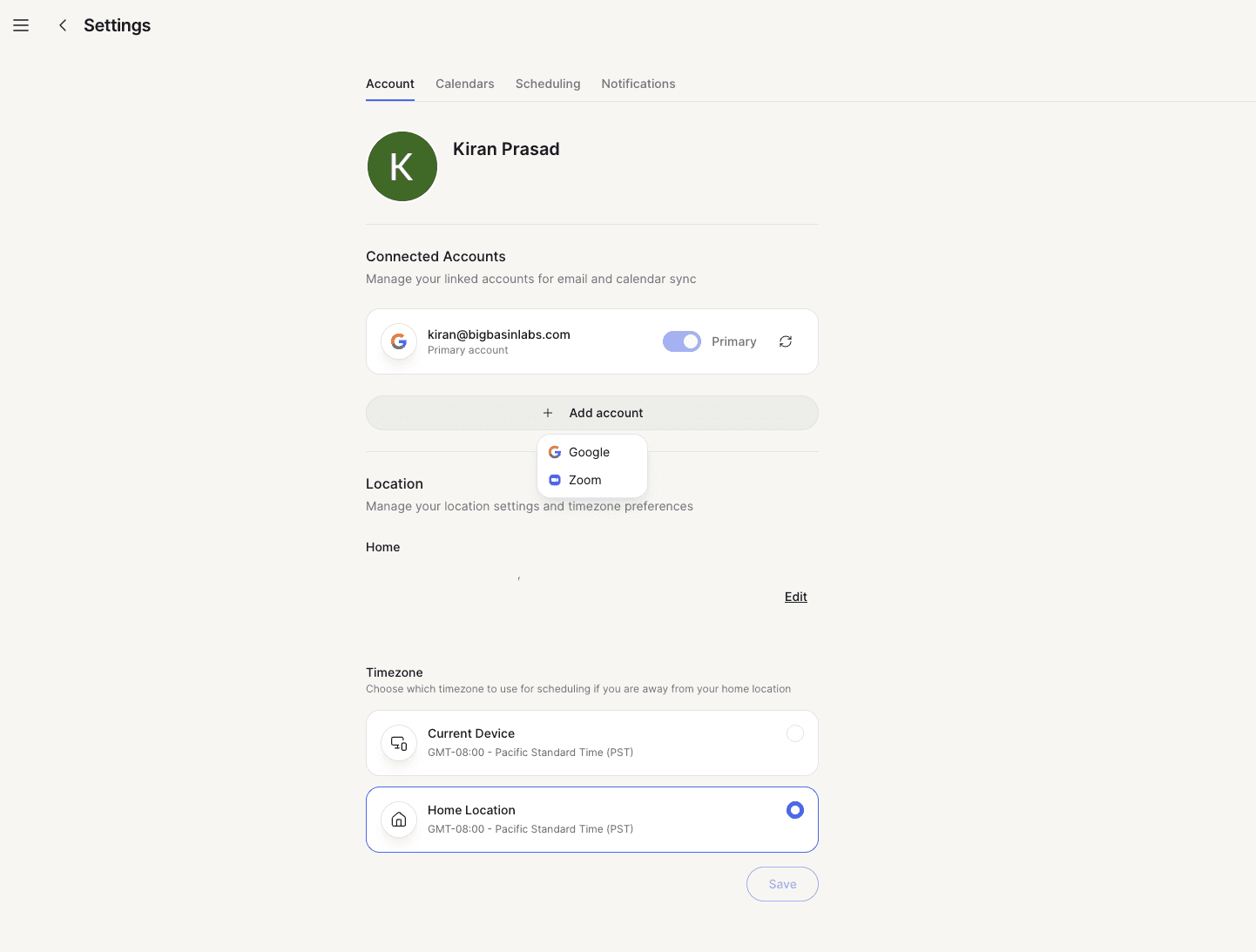
Click Add Account and choose zoom
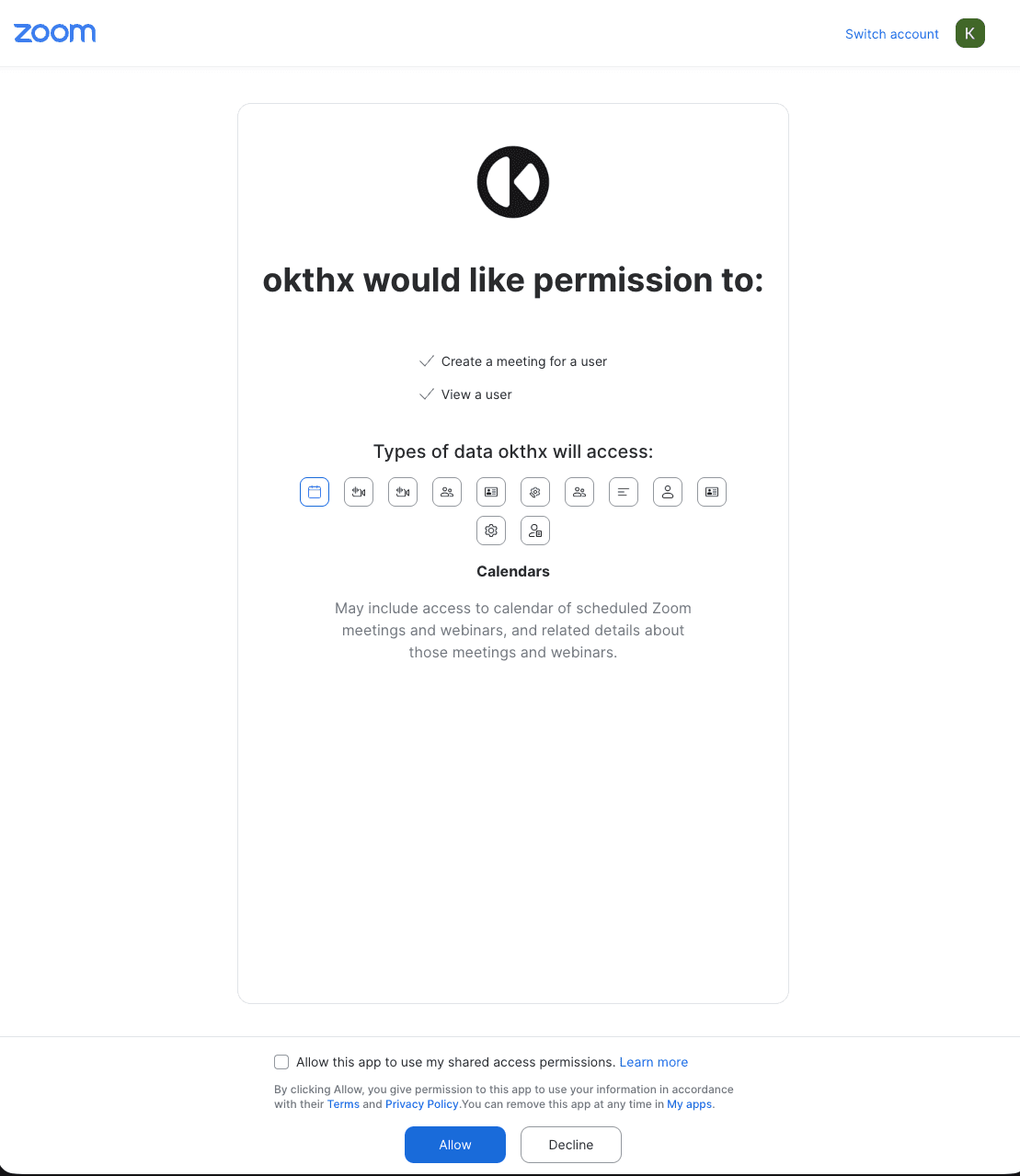
You'll be taken to Zoom's login page — sign in and accept the permissions
Back in Settings, you'll see Zoom listed under your Connected Accounts
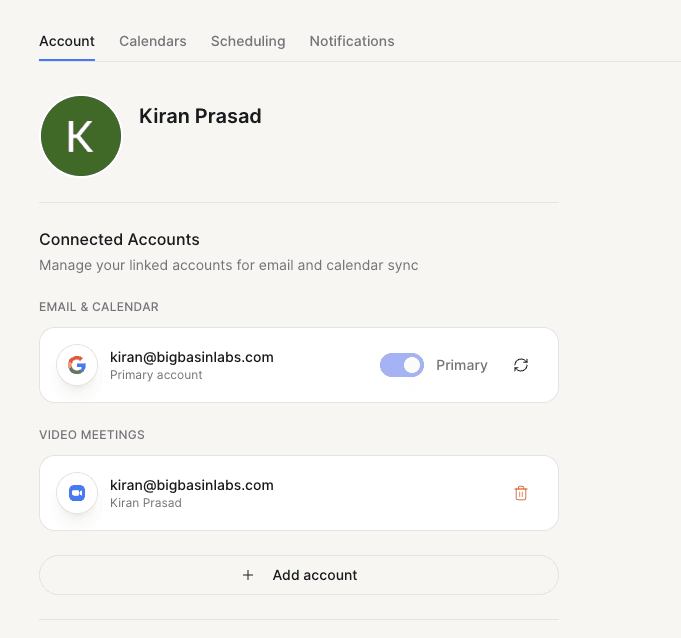
You're all set.
Scheduling with Zoom
Now when you want a Zoom meeting, just mention it in the chat. For example:
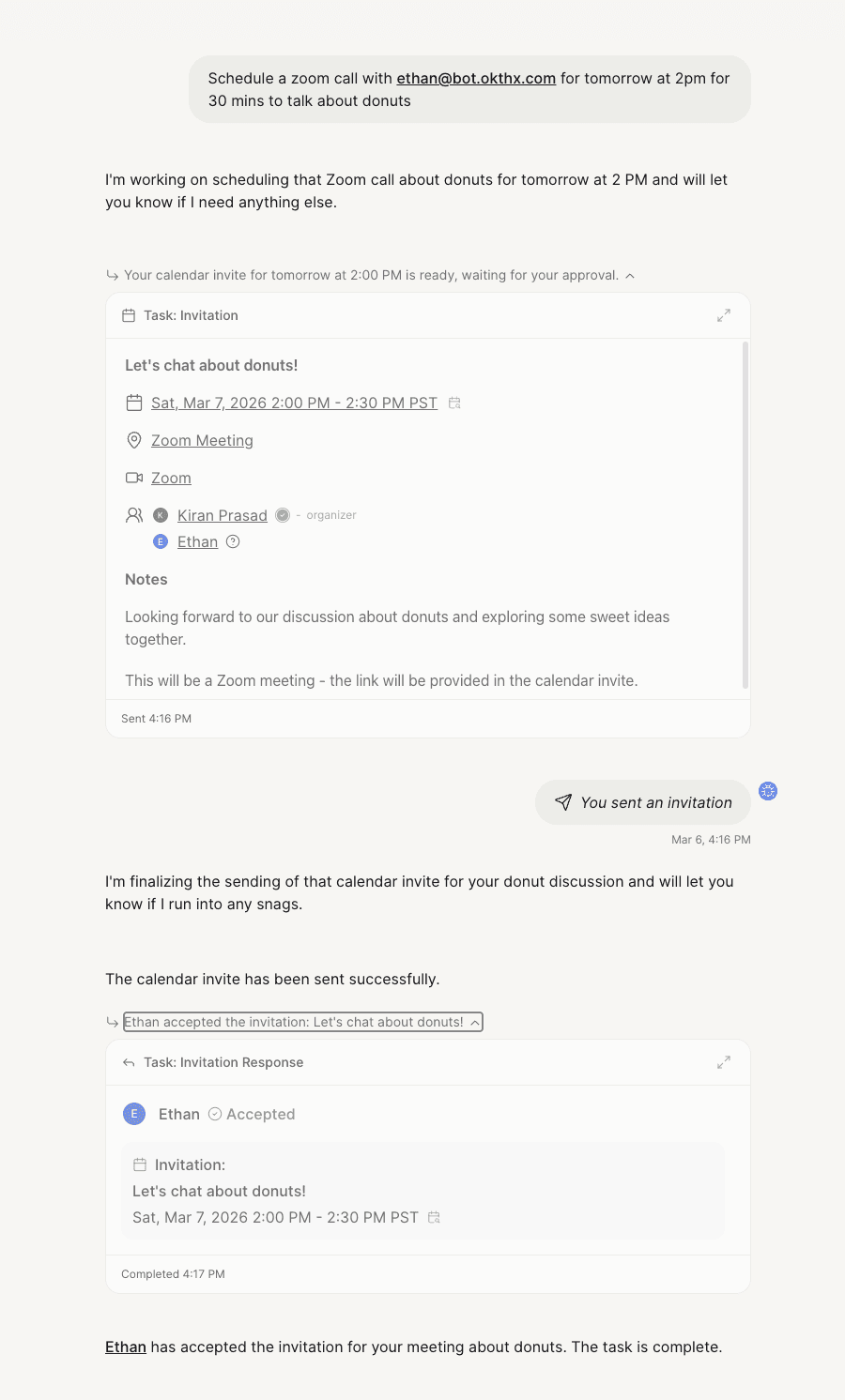
Your assistant will automatically create the Zoom meeting and attach it to the calendar event.
Removing Zoom
If you'd like to disconnect Zoom, go to Settings and open the Account tab. You'll see Zoom listed there — just tap the delete icon next to it. Your assistant will no longer be able to create Zoom meetings on your behalf.